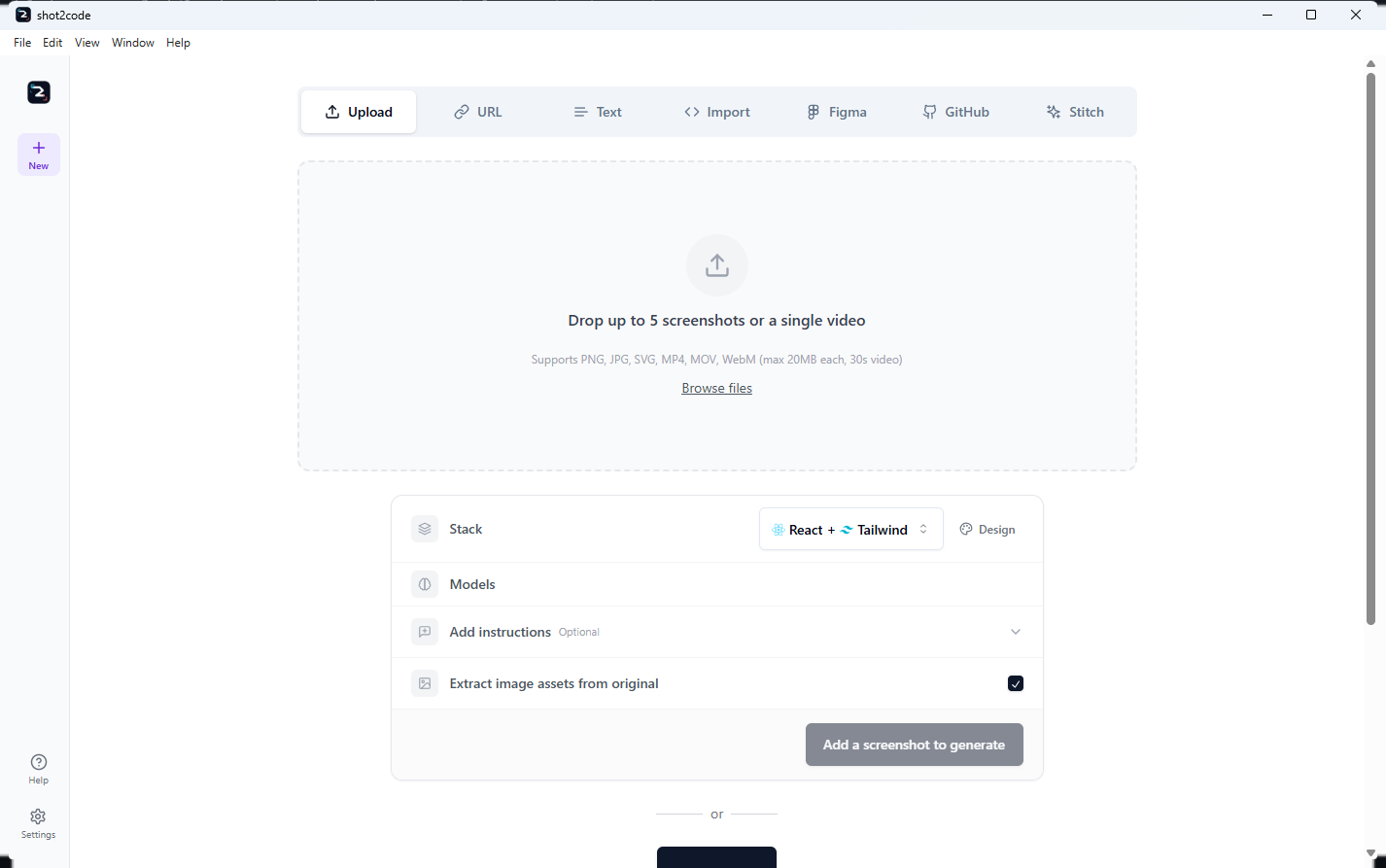
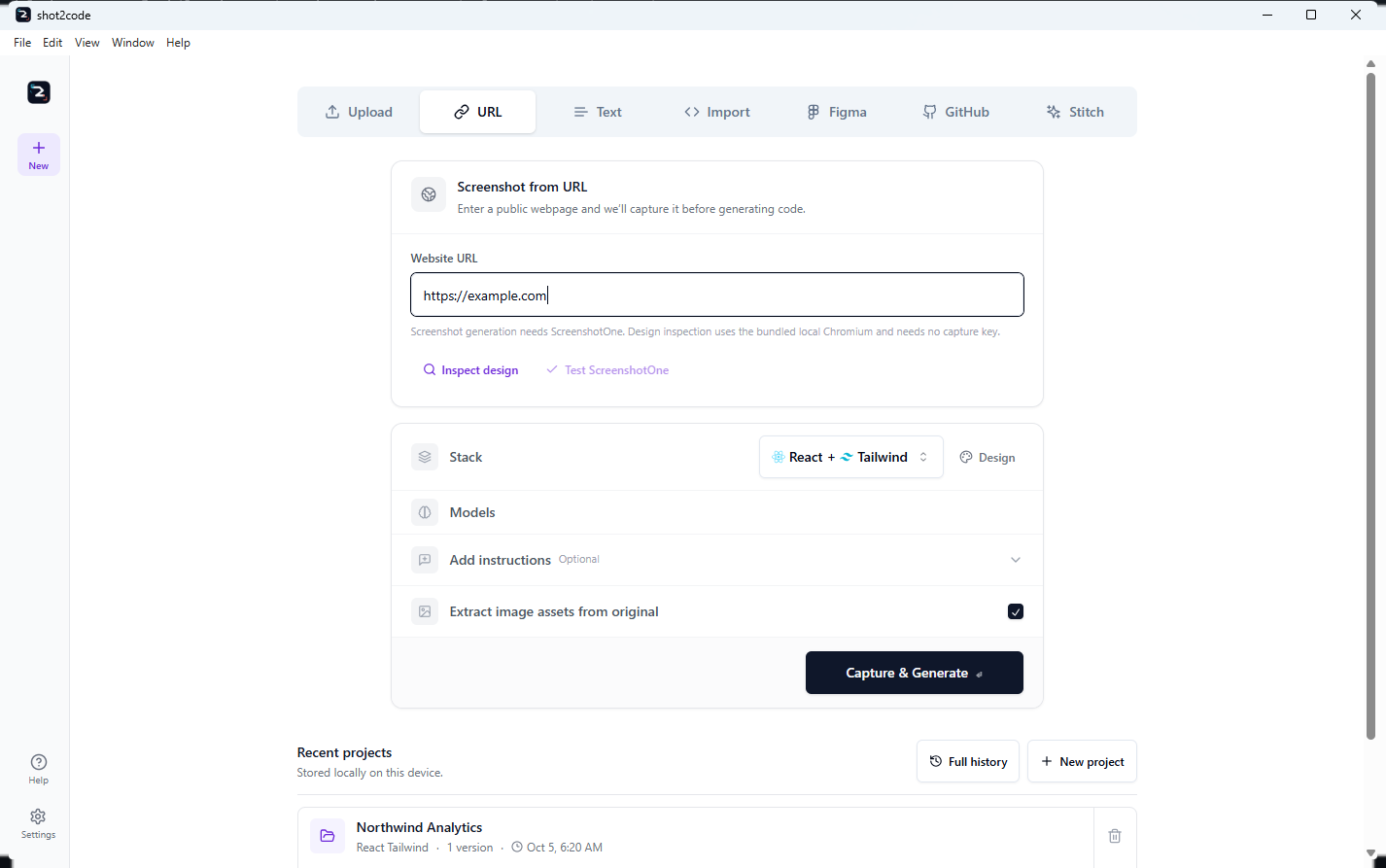
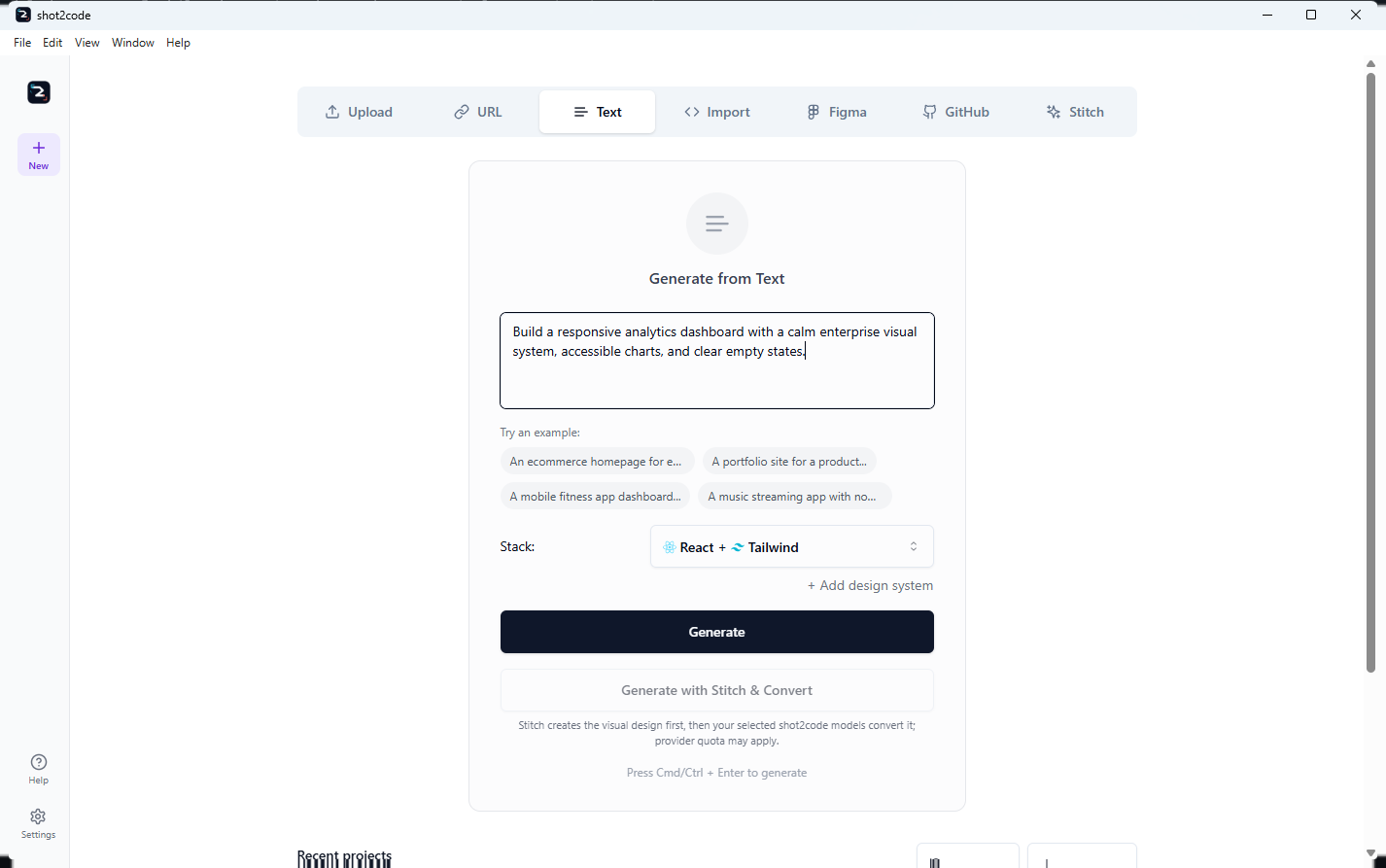
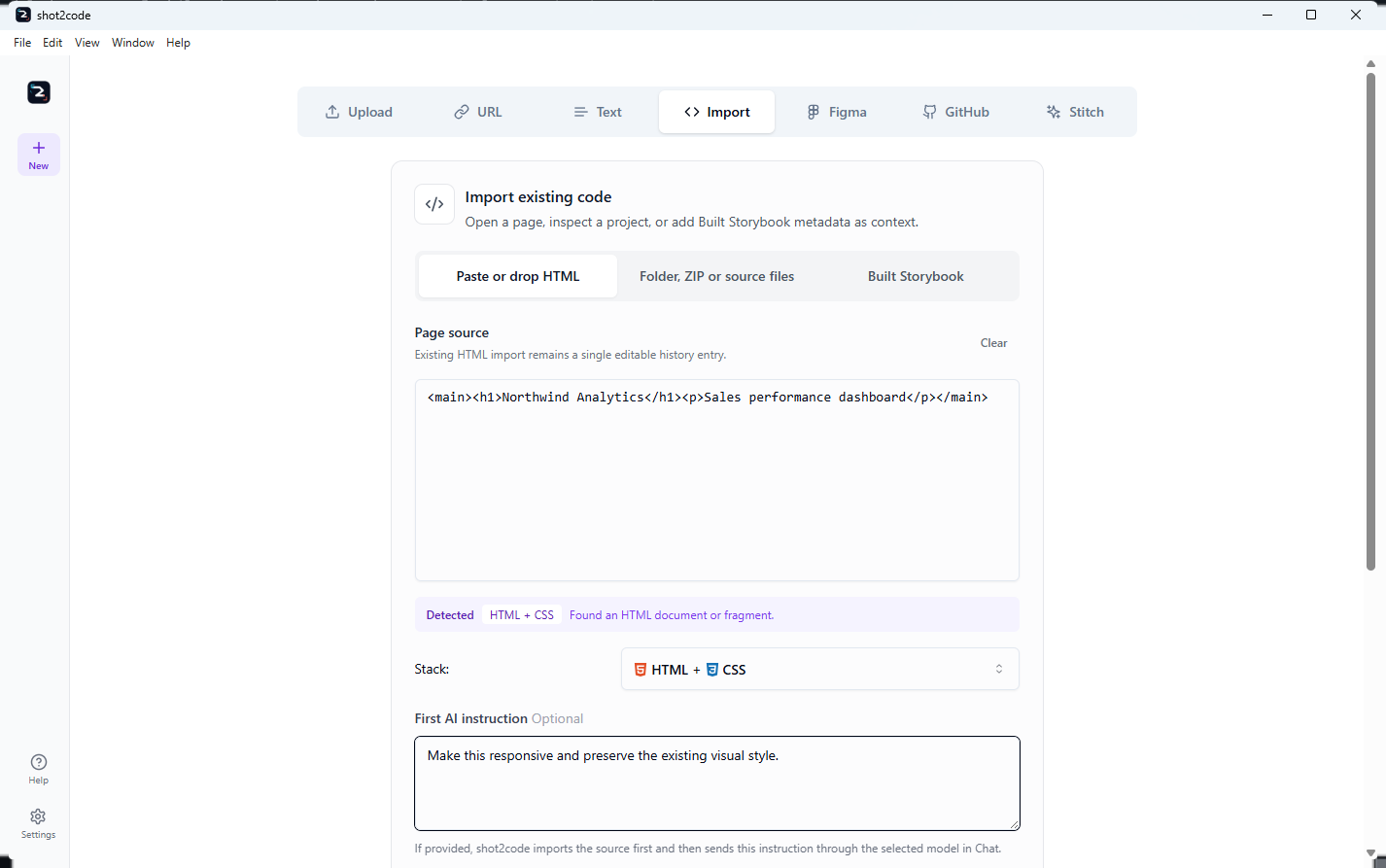
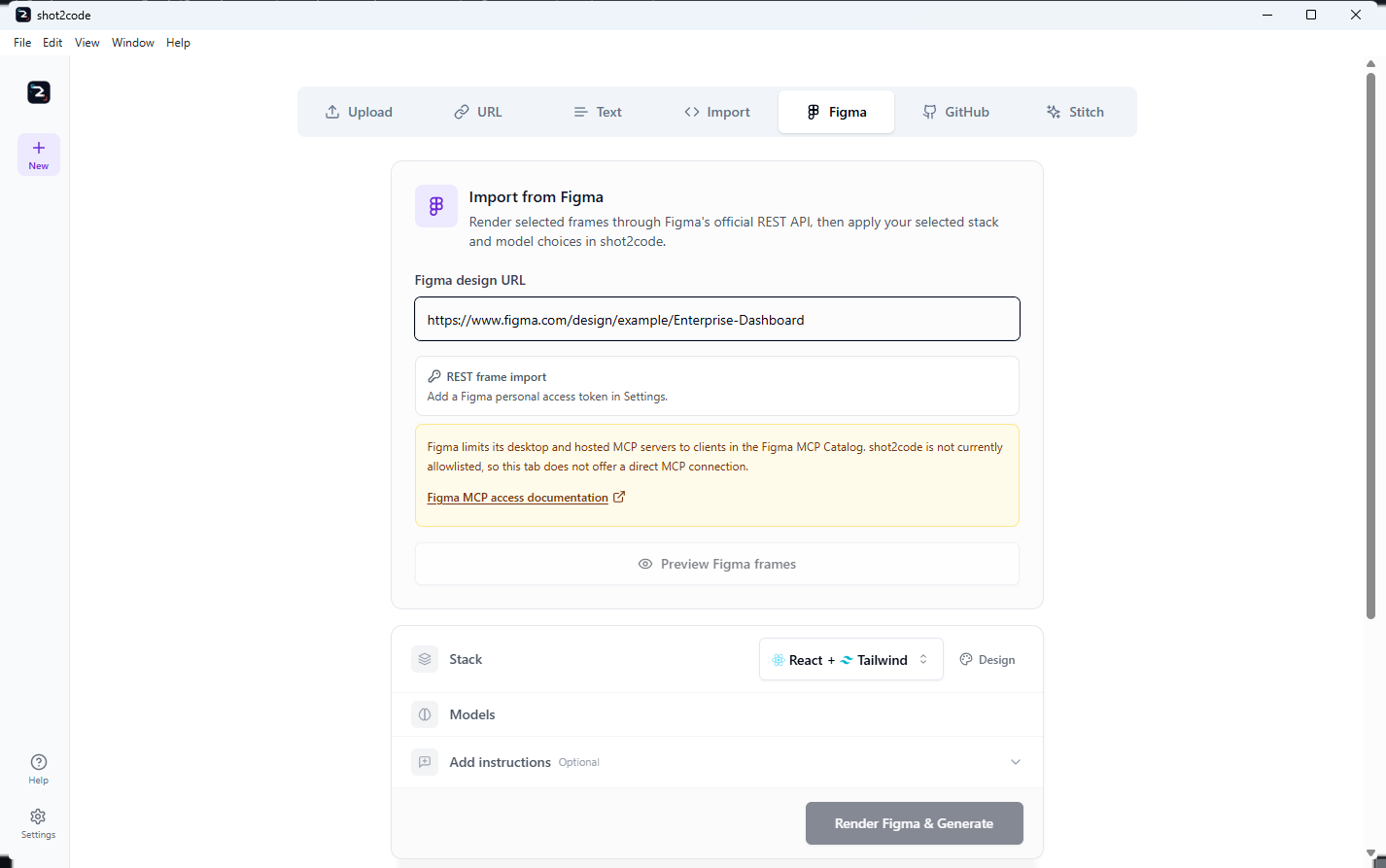
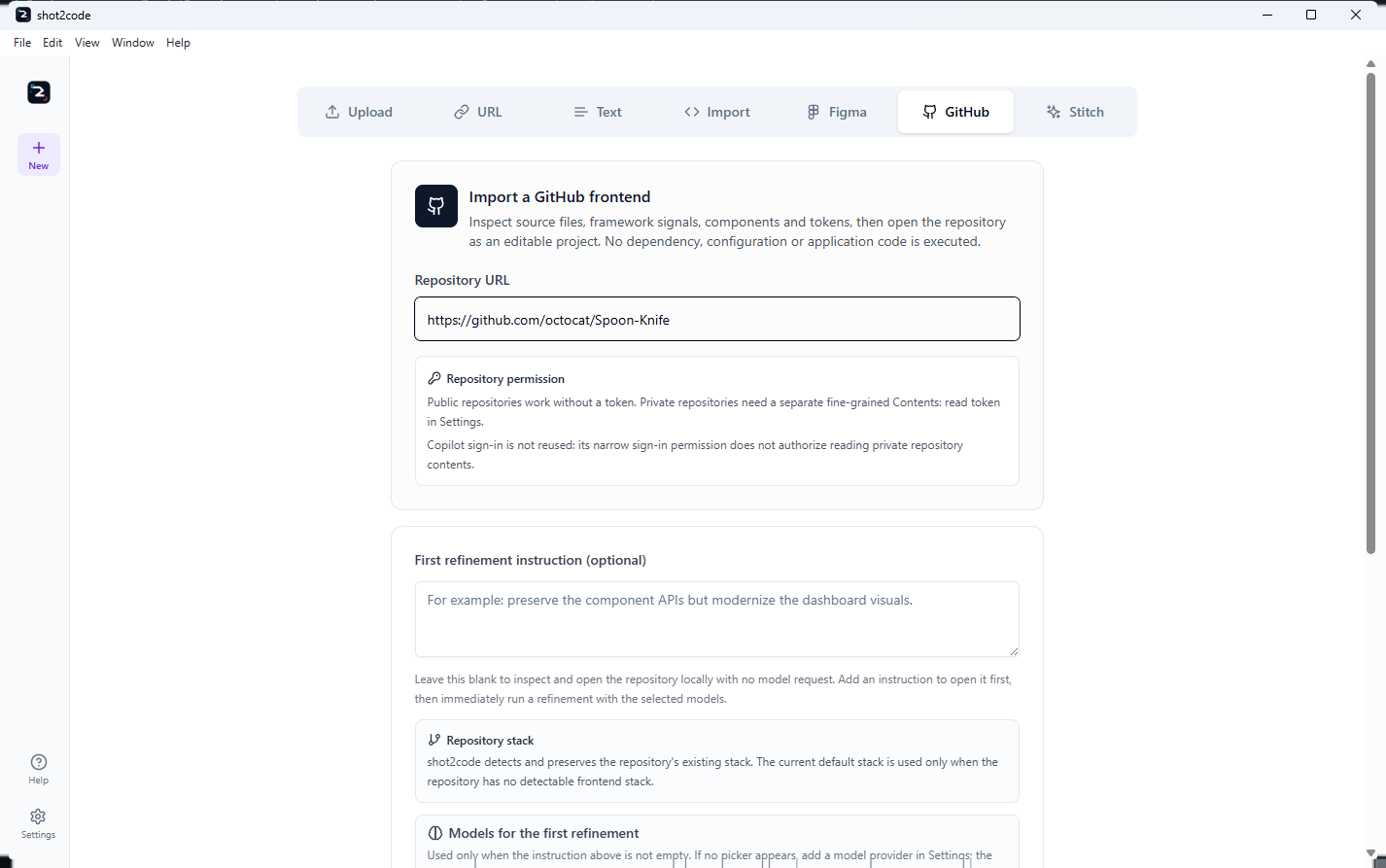
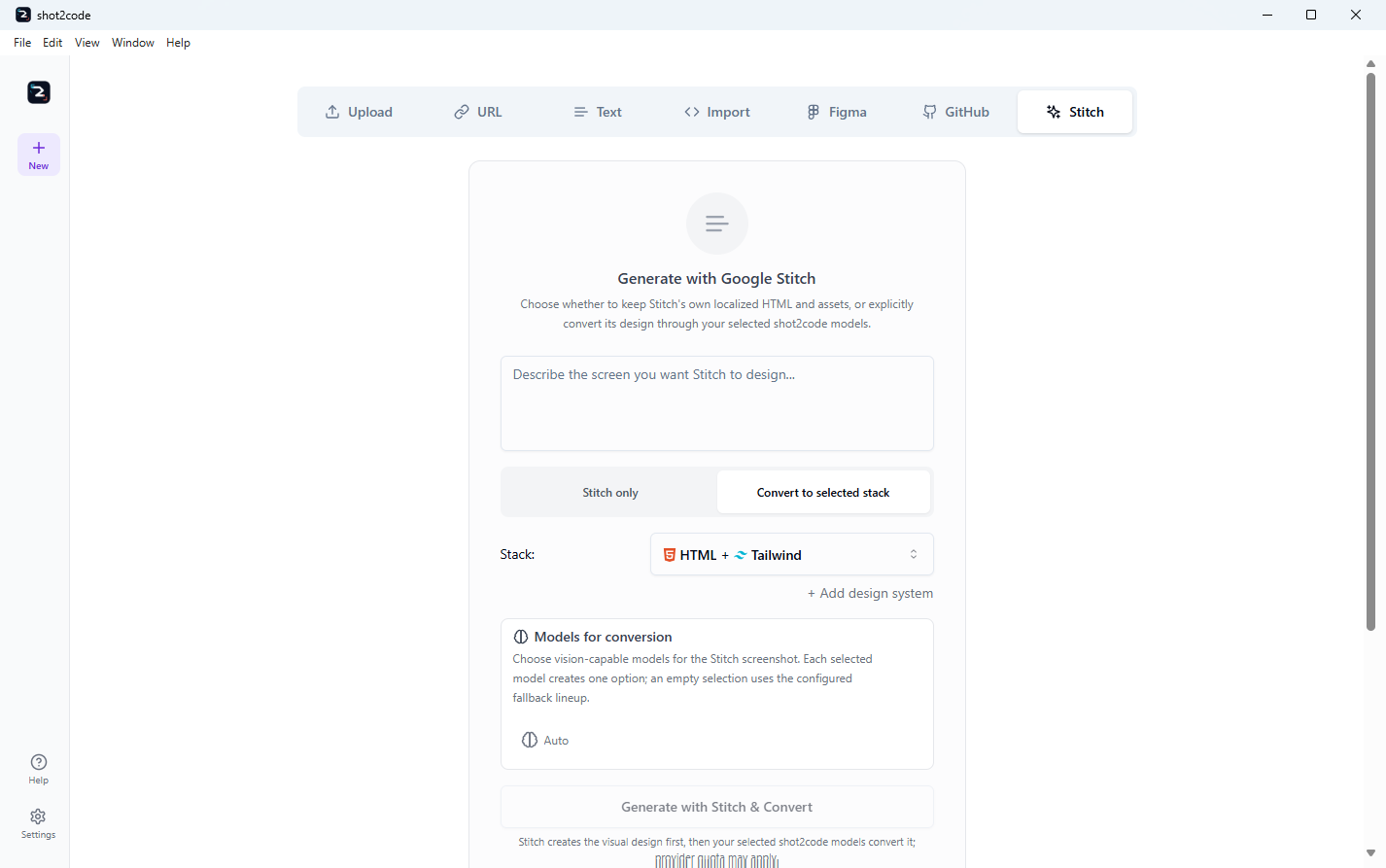
- Input tabs
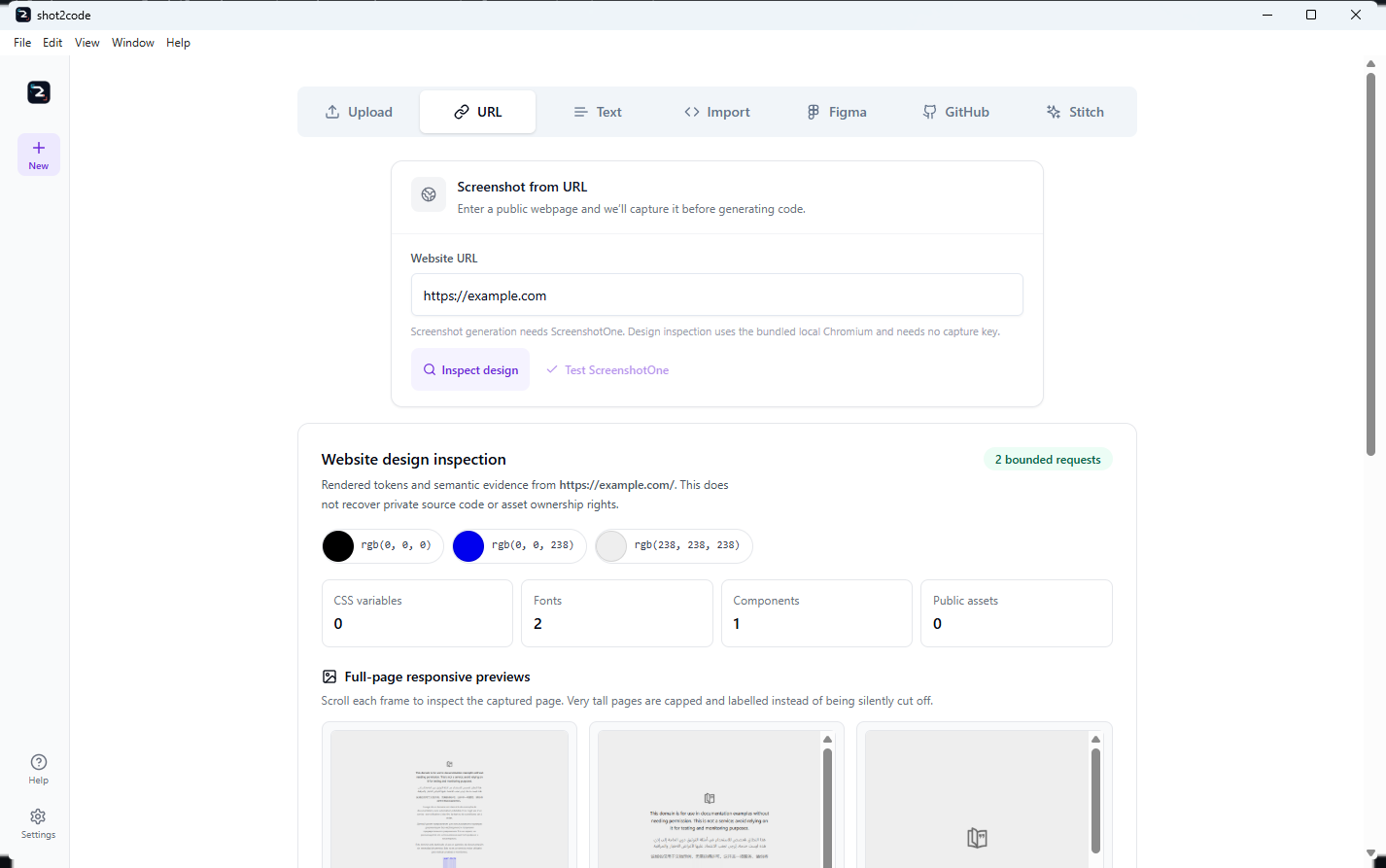
- Seven dedicated paths: Upload, URL, Text, Import, Figma, GitHub and Stitch. Video/recording lives under Upload; the input-tab guide documents each path's requirements, limits and output.
- Design sources
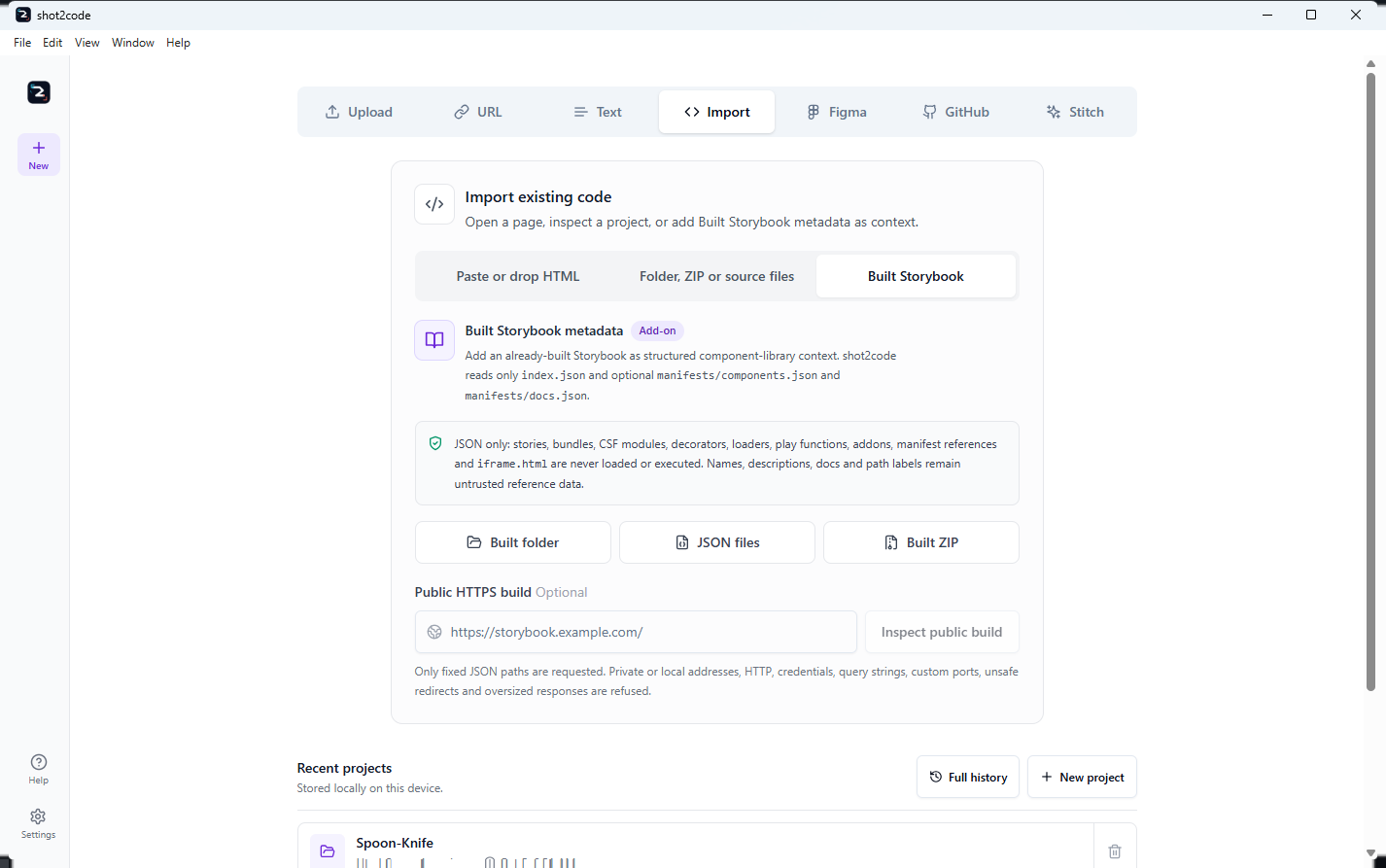
- Figma can preview REST-rendered frames before a model call and reuse them for generation. Built Storybook reads only fixed metadata JSON from files/folder/ZIP/public HTTPS. Stitch-only opens localized output without another provider. URL inspection scrolls bounded lazy content and returns full-page responsive evidence with real dimensions and blank/truncation state.
- Model choice
- Pick models from GitHub Copilot, OpenAI, Anthropic and Google Gemini in Settings or beside the composer. One option per selected model; tick nothing to leave it automatic.
- Your own endpoint
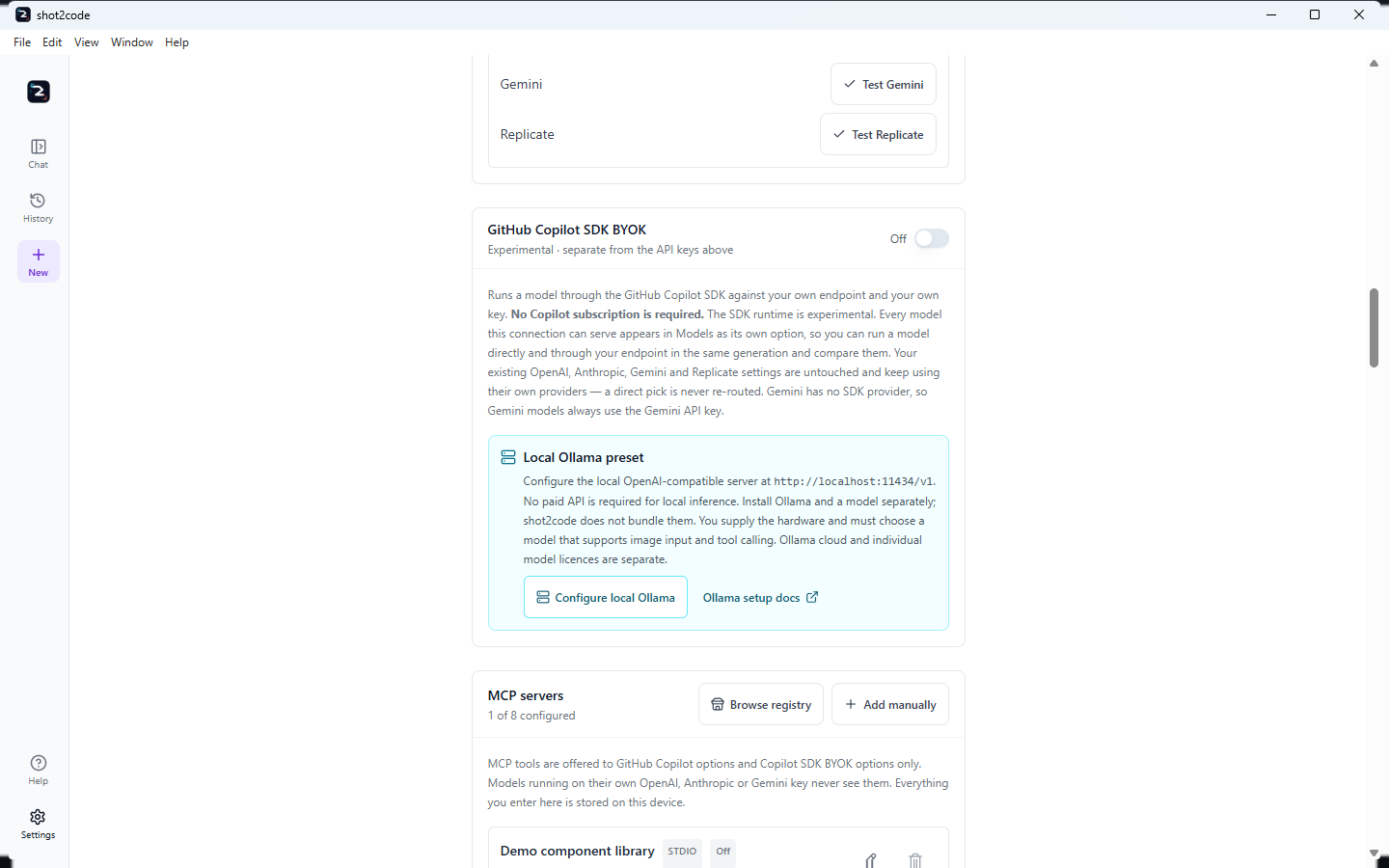
- An optional Copilot SDK BYOK connection — OpenAI-compatible, Azure OpenAI or Anthropic — with no Copilot subscription. The local Ollama preset fills
http://localhost:11434/v1; local inference needs no paid API, but Ollama, hardware and a separately licensed vision-plus-tool-calling model remain yours.
- Signing in
- The desktop app runs its own GitHub OAuth device flow: a one-time code, your browser, and no command-line tool to install. It uses a public client id and no client secret, and the token is encrypted by the operating system key store. Disconnecting clears what this app holds and leaves a
gh or Copilot CLI session signed in.
- Provider checks
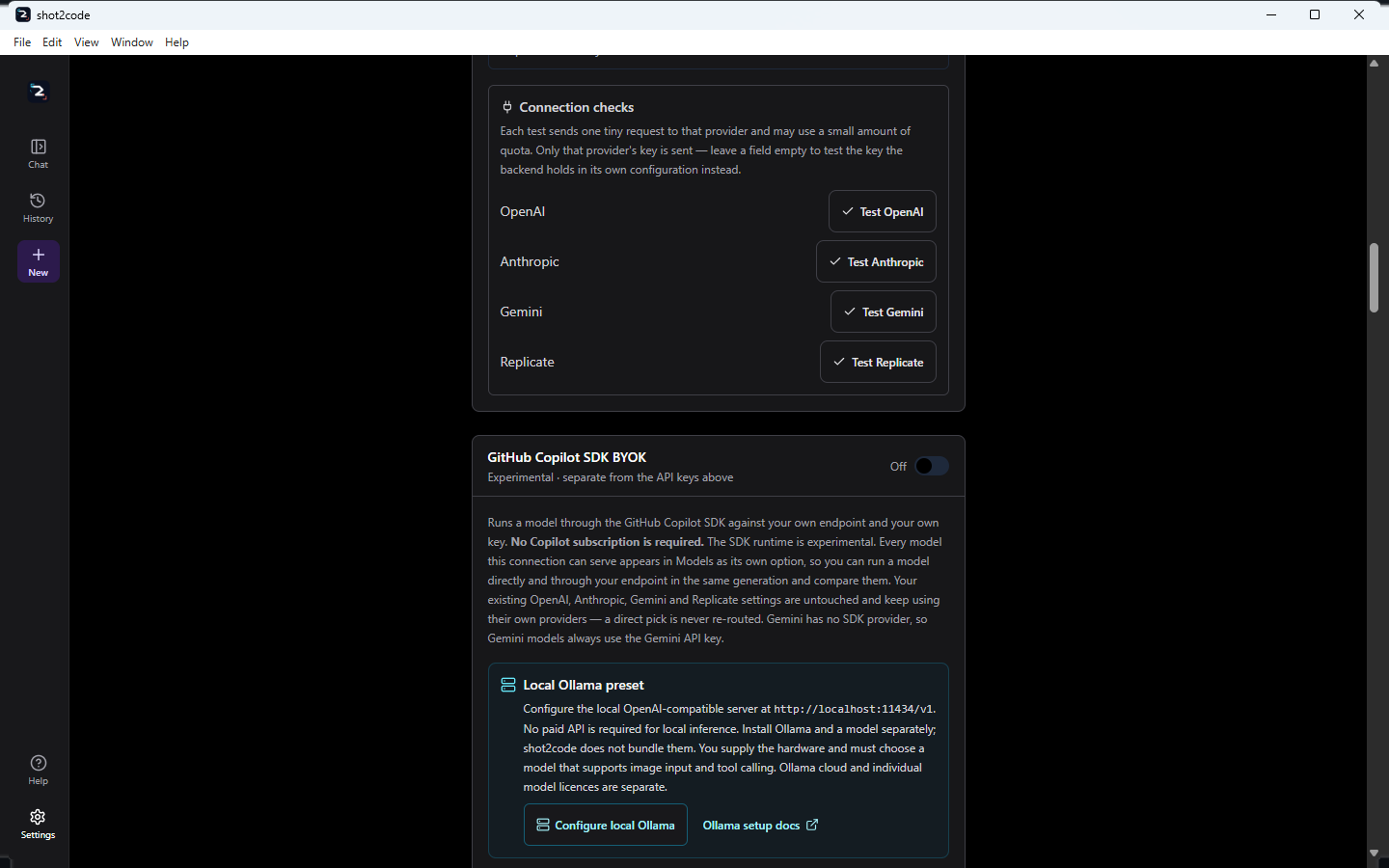
- Test OpenAI, Anthropic, Gemini and Replicate individually with one minimal request each, and read the answer as Ready, Out of credit, Key rejected, Rate limited, Access denied, Model unavailable, a configuration problem or unreachable. A test may use a little quota.
- MCP servers
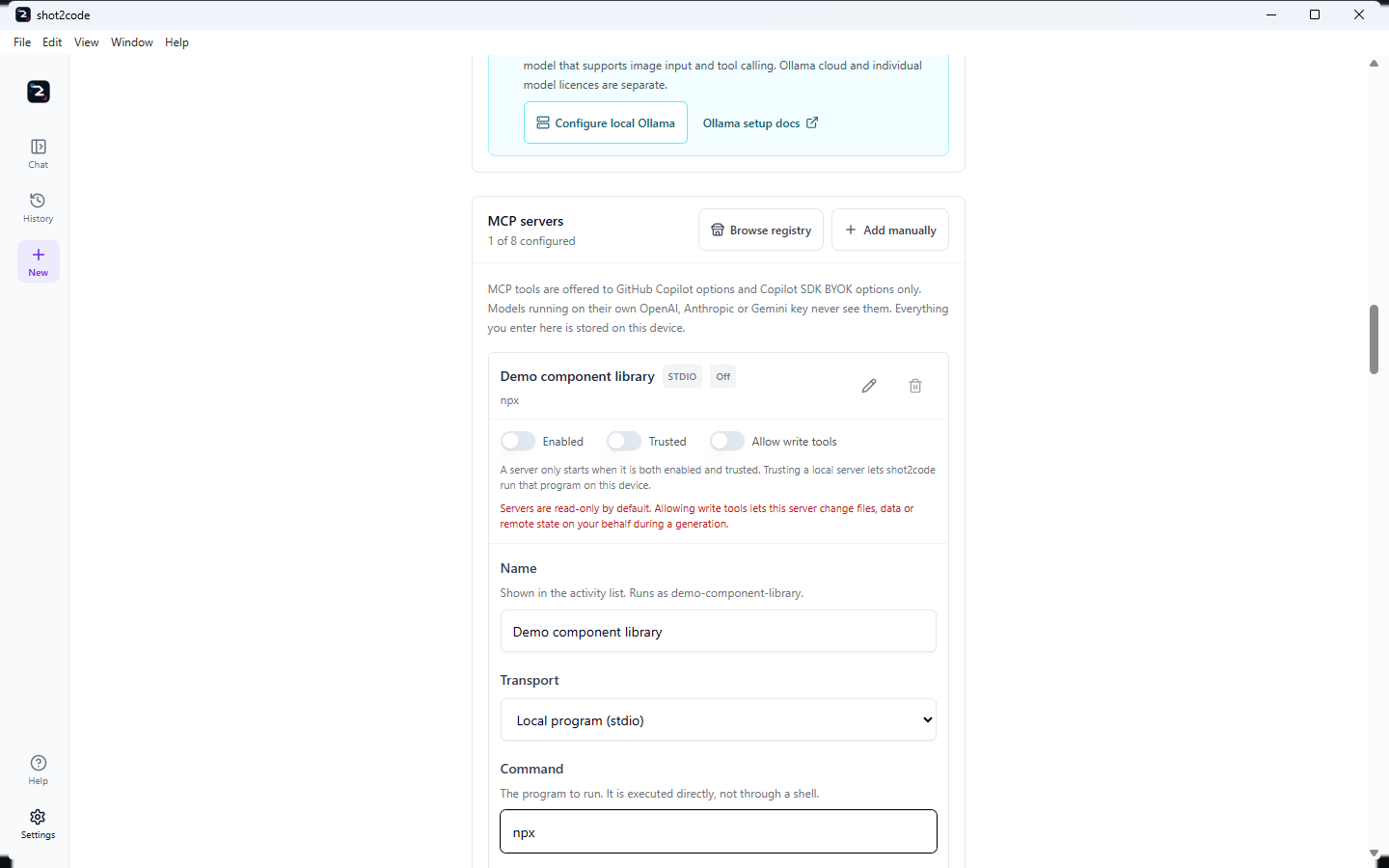
- Up to eight servers over stdio, HTTP or SSE, added by hand or from an in-app browser for the official MCP Registry. Installing from the registry creates a disabled, untrusted draft to review, as does the featured Google Stitch entry. Each needs to be enabled and trusted before it starts, stays read-only until write tools are explicitly allowed, and is offered to GitHub Copilot and Copilot SDK BYOK options only.
- Skills and research
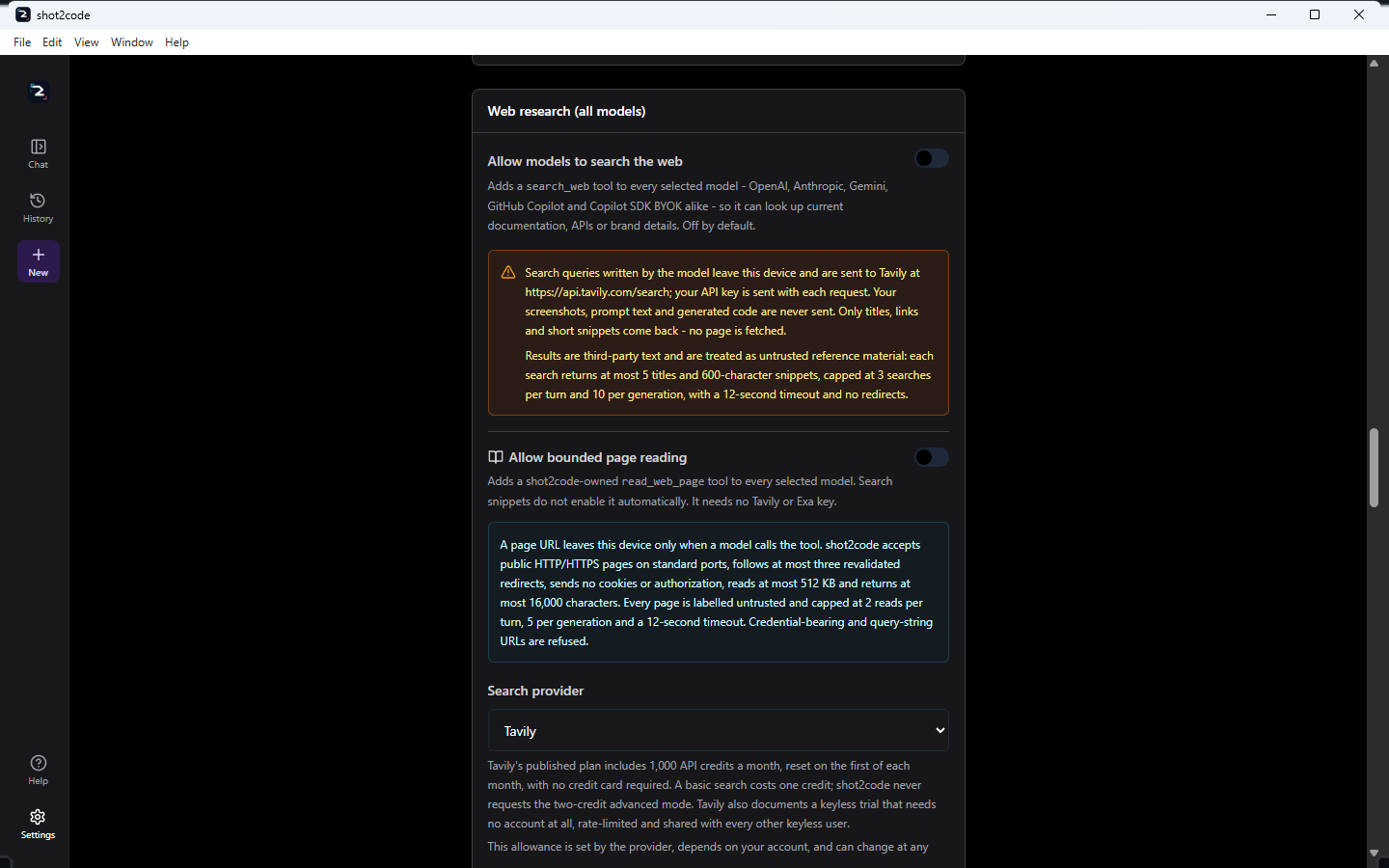
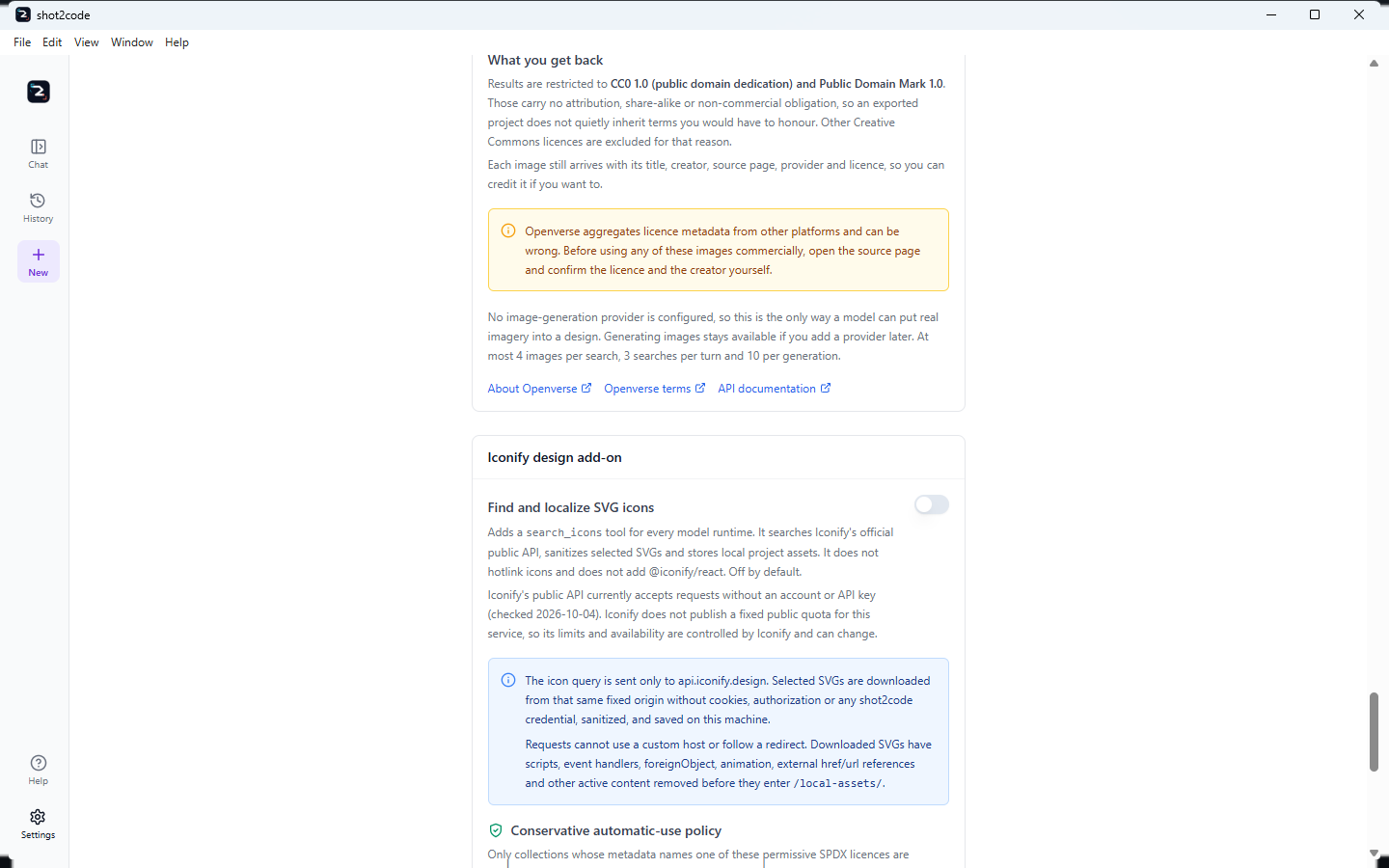
- Skills stay disabled/inert and reach Copilot runtimes only. Every runtime can separately opt into bounded Tavily/Exa snippets, query-free public-page text through
read_web_page, CC0/Public Domain Mark Openverse photos, and fixed-origin sanitized Iconify SVGs. Built-in whole-page web_fetch remains blocked.
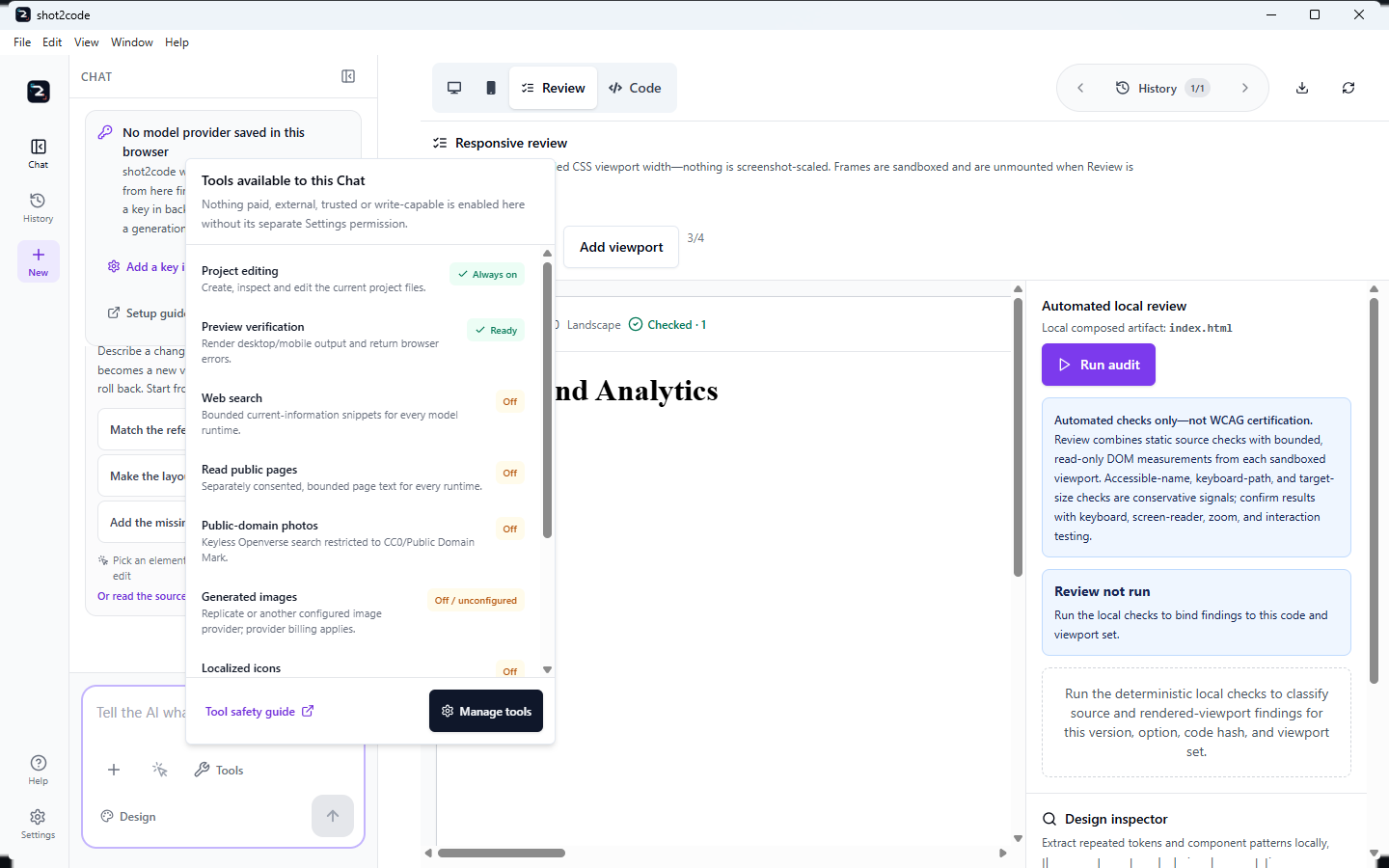
- Chat Tools
- The composer inventories project editing, Chromium preview health, research consent, generated-image readiness/provider billing, localized icons, active MCP server write scope and enabled Skills. The inventory enables nothing; every external, paid, trusted or write-capable path keeps its own Settings permission.
- Editing
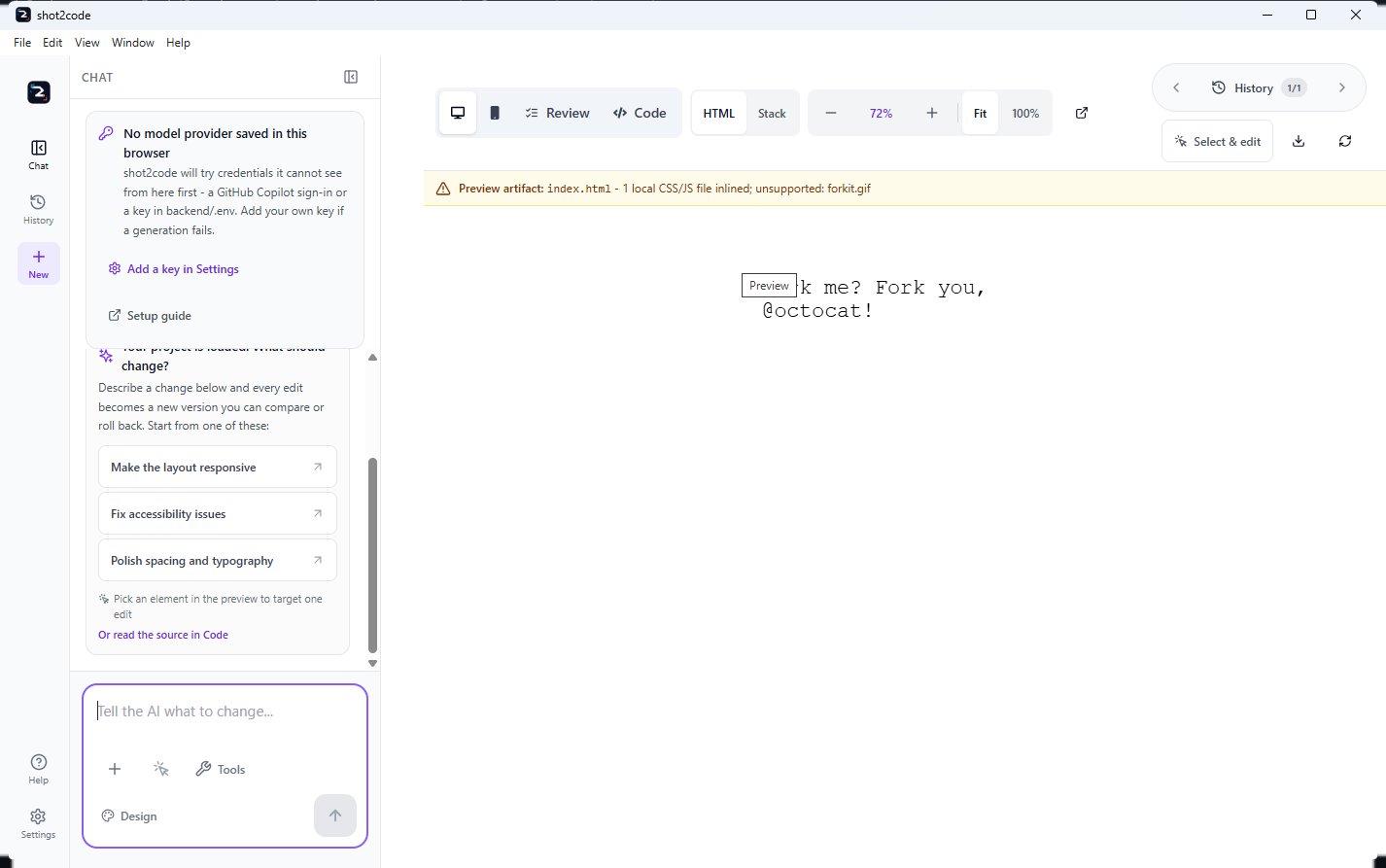
- Multi-file tree, file tabs, a collapsible explorer, select-and-edit from the preview, and a formatter that only ever changes whitespace and refuses component source. Current code is editable; a read-only Export project view lists the exact files and assets a download will contain.
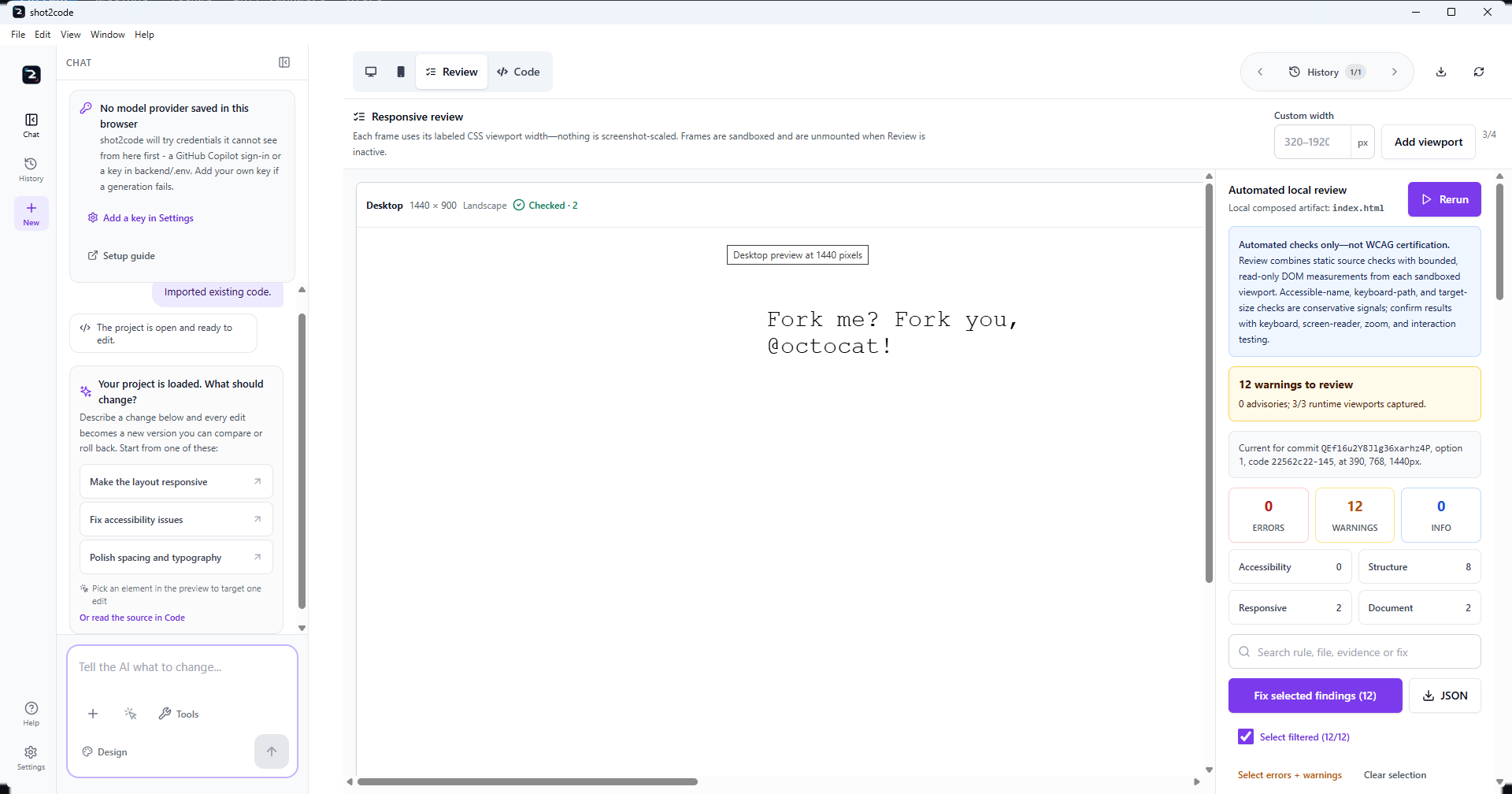
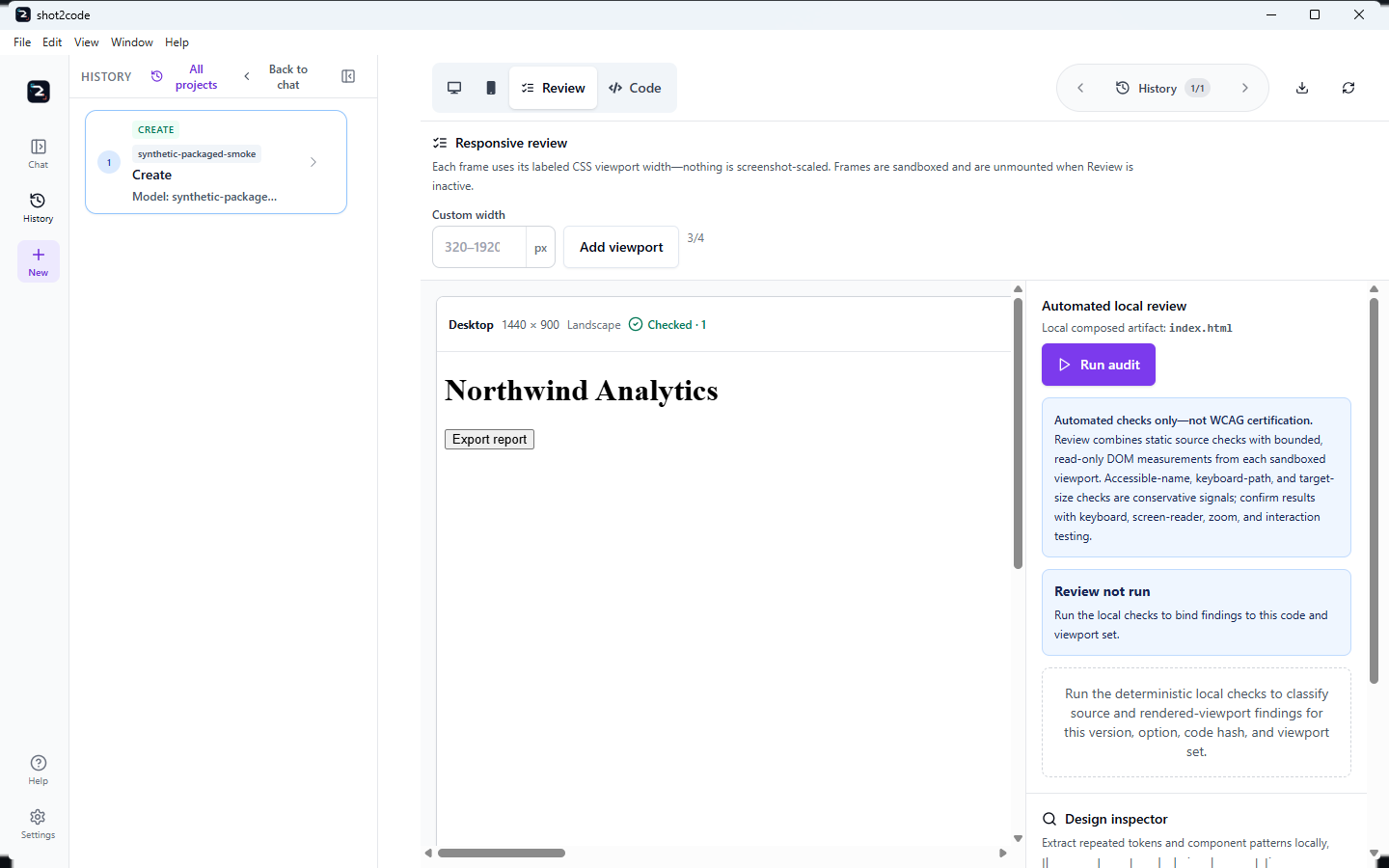
- Review
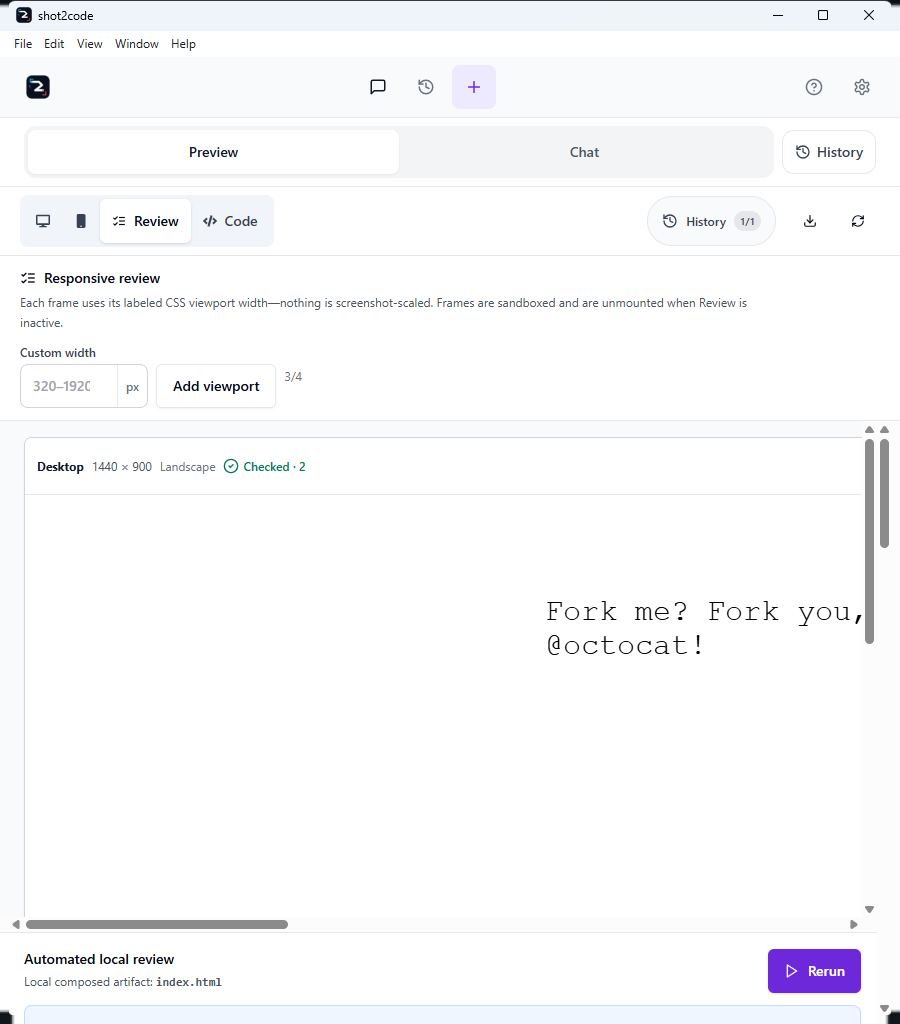
- Two to four actual widths in sandboxed frames (1440, 768 and 390 by default; custom 320–1920) combine deterministic source checks with bounded per-frame runtime evidence. Findings have categories and provenance; filters support select-visible without dropping hidden selections; failed frames are isolated; health reports healthy/stale/partial coverage; schema-v2 JSON records viewport evidence. It is not WCAG certification.
- A second opinion
- An optional AI review runs on the model that option actually ran on, with no tools, MCP servers, skills or web search attached; it is a real provider request and may use quota, and the local findings stay authoritative. A Design Inspector extracts colours, variables, typography, spacing, radii, shadows and motion, and exports
DESIGN.md, SKILL.md and a palette image.
- Layout
- On wide windows, drag or keyboard-move the dividers between Chat and the workspace, and between the file tree and the editor. Pane widths, Preview/Code/Review state, preview source/zoom, and native window bounds persist without changing a project version. Coalesced resize handling prevents narrow-window preview flicker.
- Startup
- Core routes come up first; heavy features load on use and optional probes run in the background. The shell requires genuine health, then inspects the top-level renderer: one blank load is reloaded once, and a second blank load gets a static recovery screen while local projects remain stored.
- Menus, help and feedback
- A native File, Edit, View, Window and Help menu drives the same commands as the keyboard. Ctrl+/ opens guides and Support; Help can open diagnostics and submit feedback through an authenticated GitHub CLI or safe copy/download/browser fallbacks. Private app data is never attached automatically.
- Project history
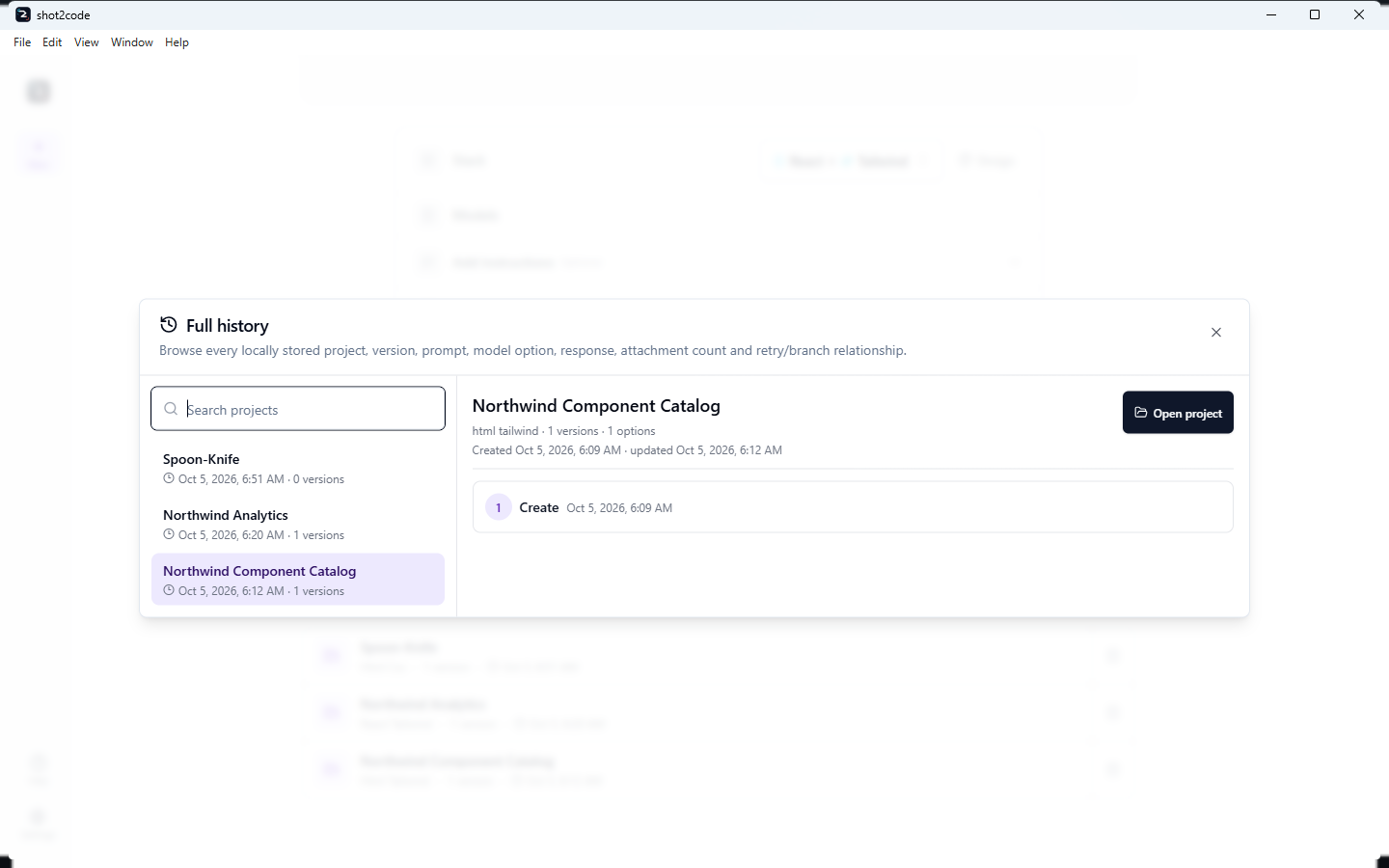
- Local SQLite keeps projects and every version/option/model/prompt/response/activity/status/timing/error plus retry/branch ancestry. Current-project History expands those records; Full history searches every local project before opening it. The database sits outside the install folder, so upgrades keep it.
- Import and GitHub
- Import accepts HTML/source plus fixed built Storybook JSON without executing stories, bundles or iframes. GitHub uses the same never-execute scanner; blank refinement opens locally, while a non-empty one uses the selected edit models/design system and preserves the detected stack.
- Preview
- A derived opaque-origin sandbox with restrictive CSP. At 100% the fixed-width canvas is centred in a neutral frame. Agent screenshot preview returns full-page desktop/mobile images plus bounded body/element counts, sanitized browser errors and nearly-blank metadata. Stack preview renders controlled Vite HTML/React/Preact without package scripts or project configuration.
- Assets and images
- Provider-billed generation reports one truthful result per prompt and trips a per-run circuit breaker after non-retryable failures. Openverse remains the no-key CC0/Public Domain Mark photo path; ordinary web images are excluded for reuse-rights reasons. Iconify SVGs are SPDX-filtered, sanitized, localized and provenance-tagged.
✓ Keyboard-first
Ctrl+/ opens the Help centre, which carries the full shortcut reference. Ctrl+1–4 switch Preview, Code, Chat and History; Ctrl+3 again collapses the chat panel on wide windows, and Ctrl+Alt+C brings it back. Project actions use Ctrl+Alt combinations — N new, I import, U upload, S settings, E export. The same commands sit in the native File, View and Help menus, greyed out until a project makes them possible. Pane dividers take arrow keys, Shift for larger steps, Home/End and Enter to reset. In the desktop app, Ctrl+= and Ctrl+- zoom in fixed steps between 50% and 300%, and Ctrl+0 resets.
✓ Sharing that asks first
CodePen is offered only when the selected stack can honestly run in a browser-only Pen, and it always asks before code leaves the device. For build-dependent projects, download the project folder instead.
✓ Honest fallbacks
When export cannot find a valid root build command, it keeps every source file and adds a Safe fallback note rather than inventing a scaffold that looks plausible and breaks later.
✓ It starts in seconds
Only the core routes have to be ready before the window opens — generation, evaluation and project tooling load on first use, and the Chromium and Copilot checks run in the background. The shell demands a real health response rather than any reply, gives up after 90 seconds instead of hanging, and logs how long readiness took.
✓ A workspace you can resize
Drag the divider between Chat and the preview, or between the file tree and the editor. Arrow keys move it, Shift moves it further, Home and End jump to the limits, Enter resets and Escape cancels a drag. Widths persist, clamp to the window, and never touch a project's versions.
✓ Help, and the log, in the app
Ctrl+/ opens a Help centre — Get started, Guides, Support and the full shortcut reference — linking the published guides rather than a private copy. In the desktop app it also opens the backend log folder, which is the first thing to attach to a bug report.